> ## Documentation Index
> Fetch the complete documentation index at: https://requestly-mintlify-changelog-requestly-past-week-38456.mintlify.site/llms.txt
> Use this file to discover all available pages before exploring further.
# How to Modify HTML Document using Modify API Response Rule
Requestly's **Modify API Response** rule lets you **directly modify the response of top-level HTML documents**. This feature is **only available for desktop app** but you can use file server and redirect rule as a workaround for most use cases.
**Click here to download** the Desktop App for your OS.
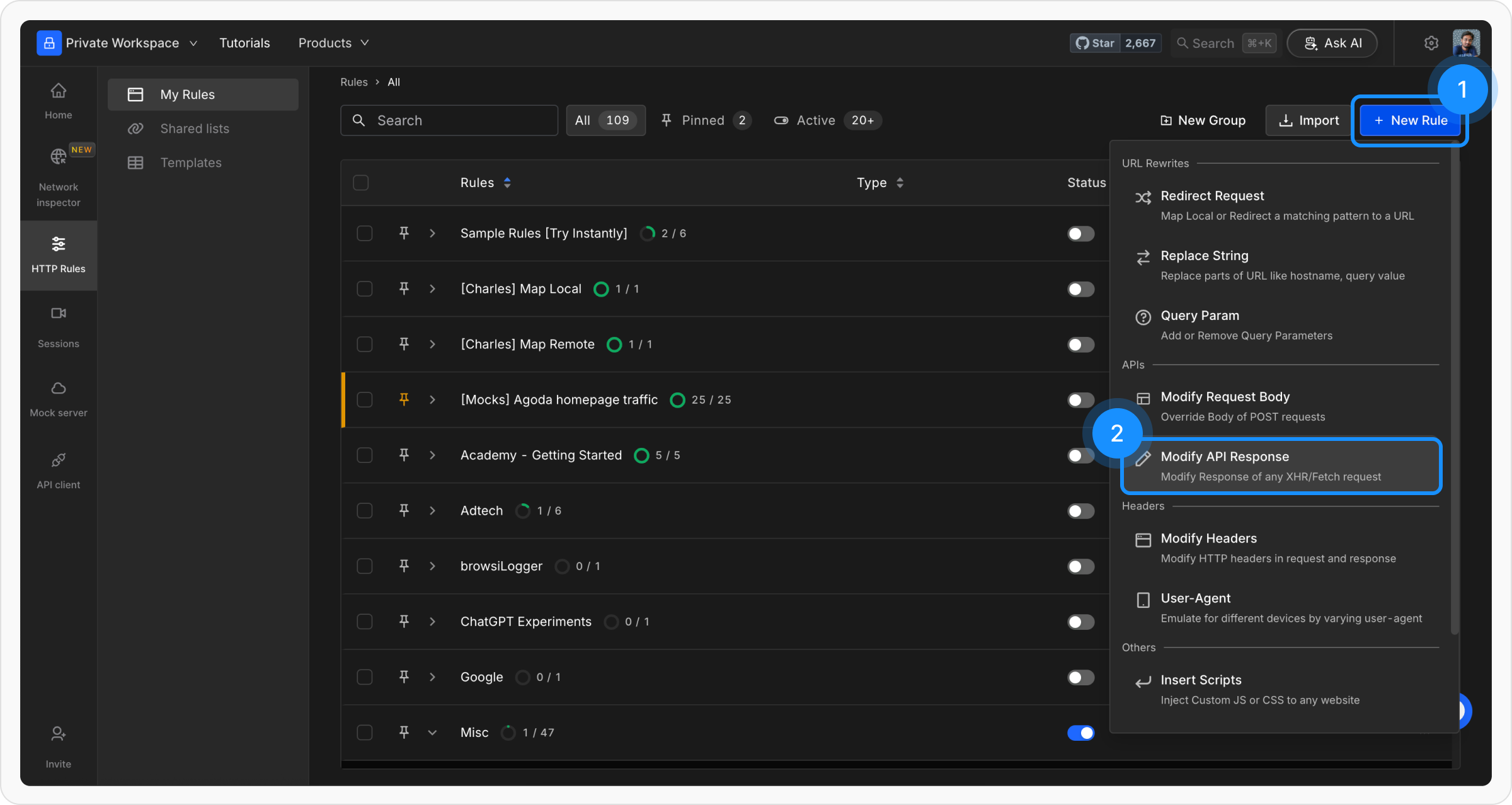
Navigate to the HTTP Rules section in the Requestly app. Click `+ New Rule` and choose the `Modify API Response` option.
 Provide a **descriptive name** for the rule to keep your setup organized. Optionally, add a **brief description** explaining its purpose for easier identification later.
In the Resource Type choose HTML/ JS/ CSS
Provide a **descriptive name** for the rule to keep your setup organized. Optionally, add a **brief description** explaining its purpose for easier identification later.
In the Resource Type choose HTML/ JS/ CSS
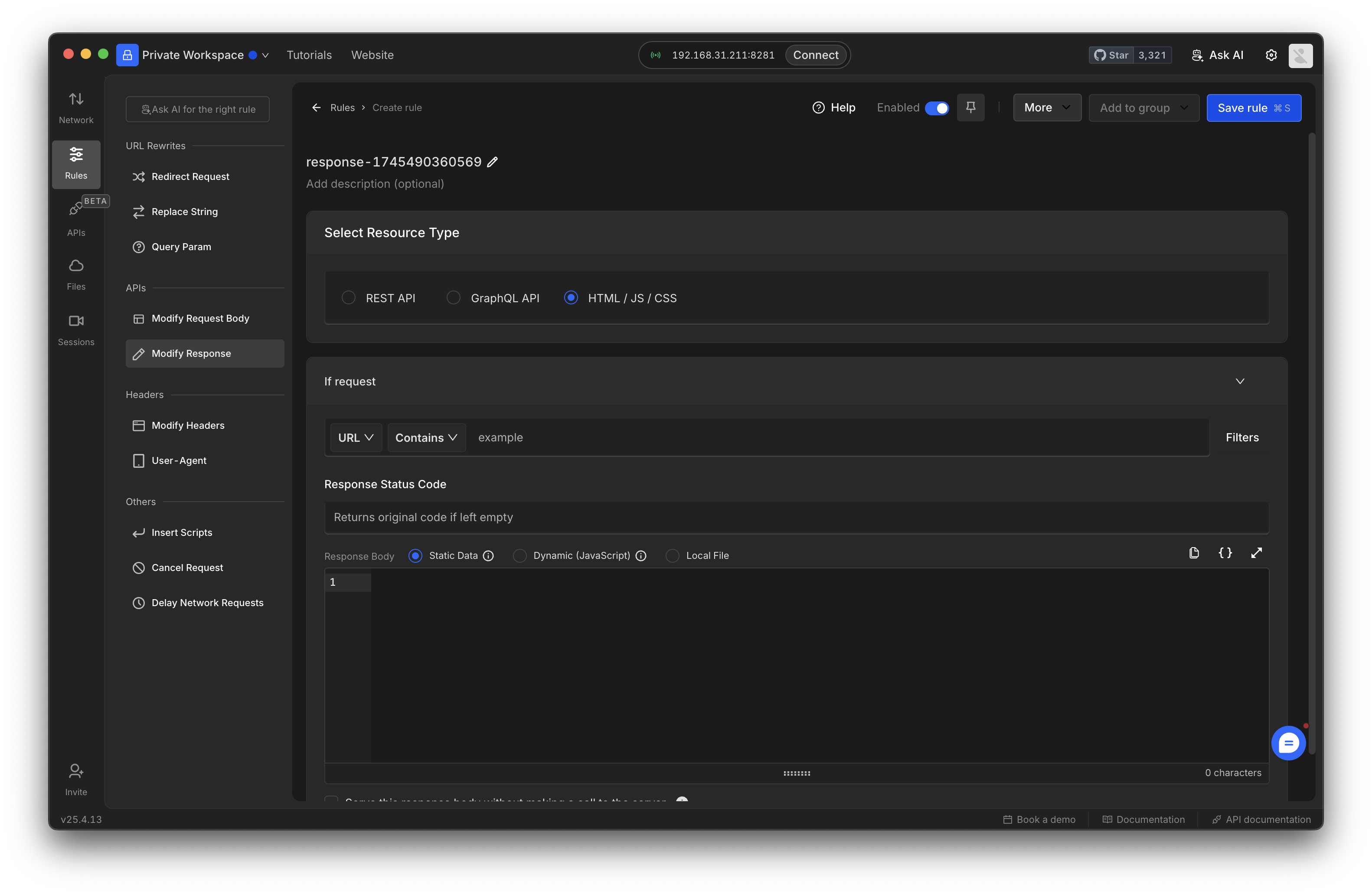 Define the criteria for the rule to be applied, such as **URL**, **Host**, or **Path**. Choose from **Regex**, **Contains**, **Wildcard**, or **Equals**, or use **Advance Filters** for more precise conditions.
For more detailed guidance, refer to the **Source Conditions Gui**[**de.**](/general/http-rules/advanced-usage/advance-targeting)
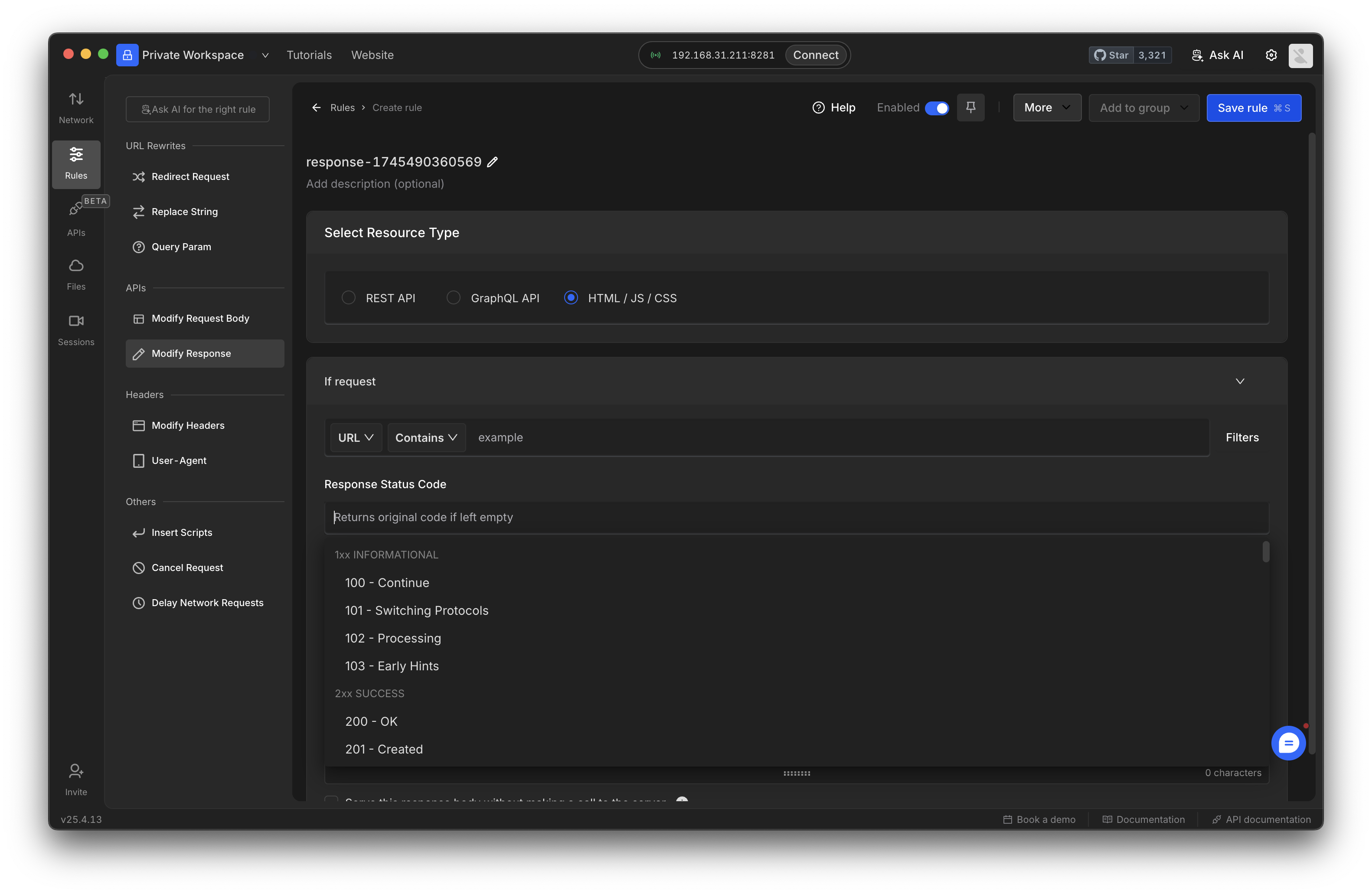
Modify the status code of the response using the dropdown menu. Choose from:
* `2XX` for successful responses
* `4XX` for client errors
* `5XX` for server errors
If left empty, the original status code remains unchanged.
Define the criteria for the rule to be applied, such as **URL**, **Host**, or **Path**. Choose from **Regex**, **Contains**, **Wildcard**, or **Equals**, or use **Advance Filters** for more precise conditions.
For more detailed guidance, refer to the **Source Conditions Gui**[**de.**](/general/http-rules/advanced-usage/advance-targeting)
Modify the status code of the response using the dropdown menu. Choose from:
* `2XX` for successful responses
* `4XX` for client errors
* `5XX` for server errors
If left empty, the original status code remains unchanged.
 Choose one of the following methods to modify the response data:
* **Static Response Modification**: Input a static value as the response body.
* **Dynamic** **Modification Script (JavaScript)**: Use JavaScript to modify responses dynamically. The script provides access to parameters like:
* `method`: HTTP Method (GET, POST, etc.)
* `url`: Full URL of the request
* `response`: Original response body (string)
* `responseType`: Content type of the original response
* `requestHeaders`: Headers sent with the request
* `responseJSON`: Original response parsed as a JSON object
Click **Save** to store the rule and toggle it **ON**. This will apply the rule to the defined source conditions.
Choose one of the following methods to modify the response data:
* **Static Response Modification**: Input a static value as the response body.
* **Dynamic** **Modification Script (JavaScript)**: Use JavaScript to modify responses dynamically. The script provides access to parameters like:
* `method`: HTTP Method (GET, POST, etc.)
* `url`: Full URL of the request
* `response`: Original response body (string)
* `responseType`: Content type of the original response
* `requestHeaders`: Headers sent with the request
* `responseJSON`: Original response parsed as a JSON object
Click **Save** to store the rule and toggle it **ON**. This will apply the rule to the defined source conditions.